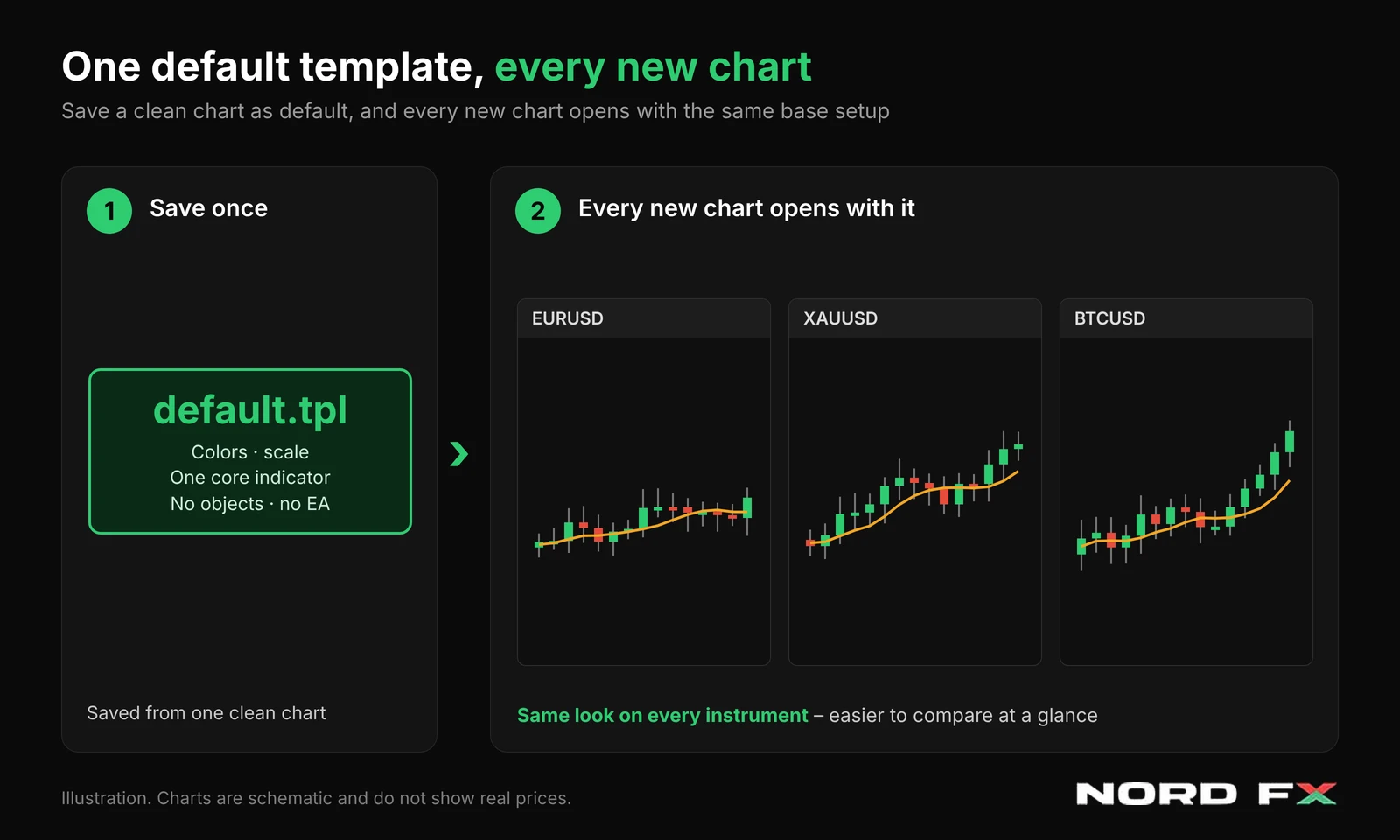
A default template is the chart setup that MetaTrader applies automatically every time you open a new chart. It is stored in a file called default.tpl, it exists in both MT4 and MT5, and you can replace the factory version with your own setup in a few clicks.
Most traders never touch it. Every new chart then opens with the same black background, green bars and no indicators, and the same colors, scale and tools get rebuilt by hand again and again. This guide explains how the default template and the other auto-loaded templates work, how to set up a clean one, and which mistakes to avoid. If you are new to saving chart setups in general, start with our guides to templates and profiles in MT5 and MT4.
What is a default template in MT4 and MT5?
A template is a saved set of chart parameters that can be applied to other charts. It can store the chart type and colors, the scale, running indicators with their settings, graphical objects, period separators and even an attached Expert Advisor with its parameters. The default template is the one template that is applied without you doing anything. Both platforms create it during installation, and it is used for every newly opened chart.
Two facts shape how you use it. First, it cannot be deleted from the platform, only modified. Second, it is not a separate feature. It is an ordinary template with a reserved name, default.tpl, so everything you already know about saving and applying templates works the same way here.
Why set up a default template at all?
The factory default is built to be neutral, not to suit your analysis. Every time you open a new chart you probably change the same things: the colors, the chart type, the scale, a moving average or two. Each change takes seconds, but across dozens of charts a week it adds up, and it invites small inconsistencies. One chart has a 50-period average, the next has 21, and a third has none.
A default template removes that routine. Every new chart starts from the same base, so charts of different instruments are easier to compare at a glance. It also lowers the chance of forgetting a tool you normally rely on, because the setup is already there when the chart opens.
Which templates load automatically?
The default template is the best known, but the platforms reserve a few file names for special kinds of charts. The table below shows what each one does.
File name | When it is applied | Platform |
default.tpl | Every new chart you open | MT4 and MT5 |
tester.tpl | The chart on which Strategy Tester results are displayed | MT5 |
offline.tpl | Offline charts opened from the File menu | MT4 |
debug.tpl | The chart created when an MQL5 program is debugged from MetaEditor | MT5 |
For everyday trading only default.tpl matters. The others are mostly of interest if you test Expert Advisors or work with custom charts. A tester template is still a handy detail: backtest charts then open with colors and indicators you can actually read, instead of the factory look.
Where the default template is stored
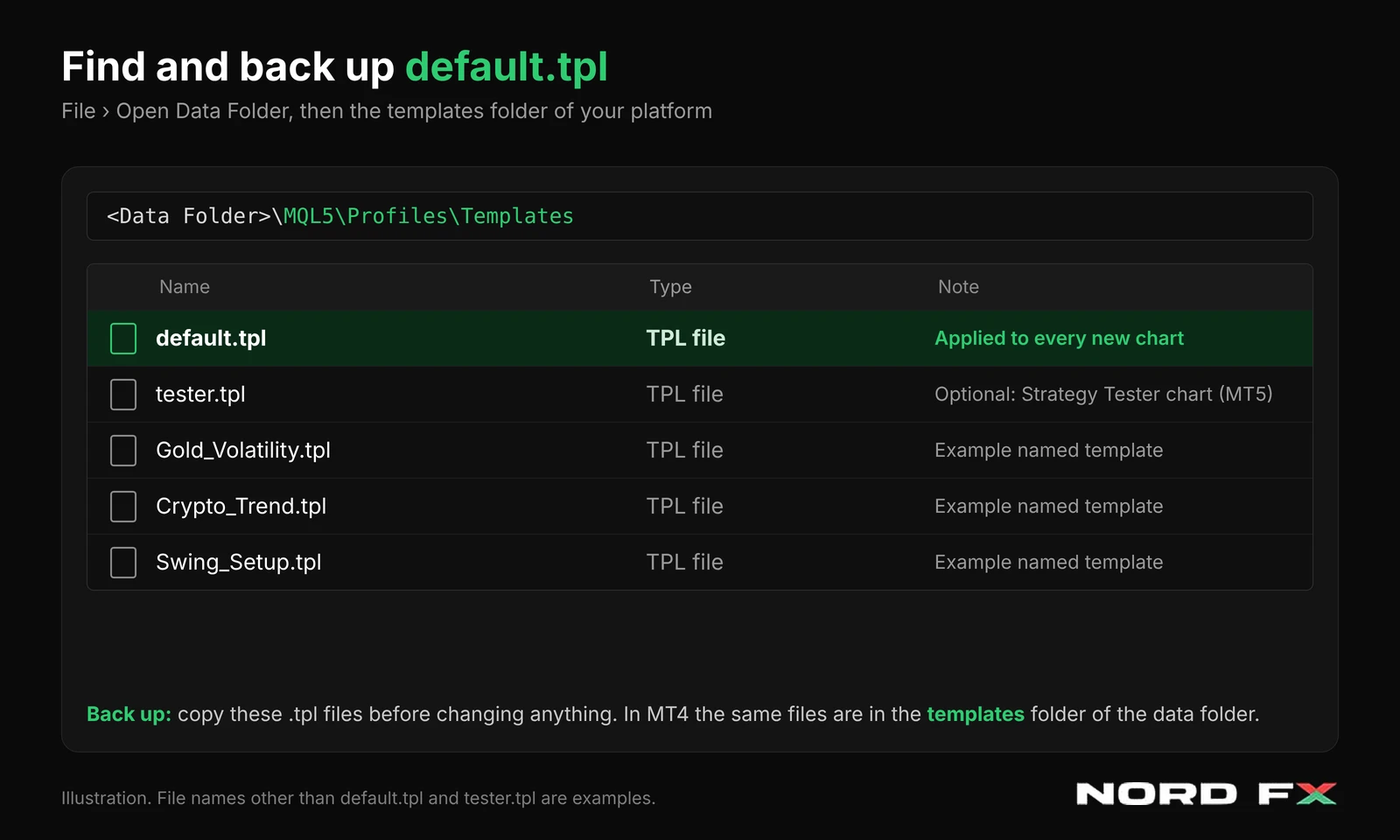
Template files have the .tpl extension and live in the platform data folder. In MT4 they sit in the templates subfolder. In MT5 they are in the MQL5\Profiles\Templates folder. The simplest way to reach the data folder is File, then Open Data Folder.
This matters for backups. Copying the .tpl files is enough to keep your chart setups safe. MT5 profiles are stored separately, in MQL5\Profiles\Charts, so a full workspace backup means copying both folders.
How to set your own default template
The steps are the same in MT4 and MT5. Only the menu wording differs slightly.
- Open a fresh chart on an instrument and timeframe you use often.
- Set the look: chart type, colors, grid, scale, OHLC line and volumes on or off.
- Add only the indicators you want on every chart, with the settings you really use.
- Make sure no Expert Advisor is running on the chart (see the section on this below).
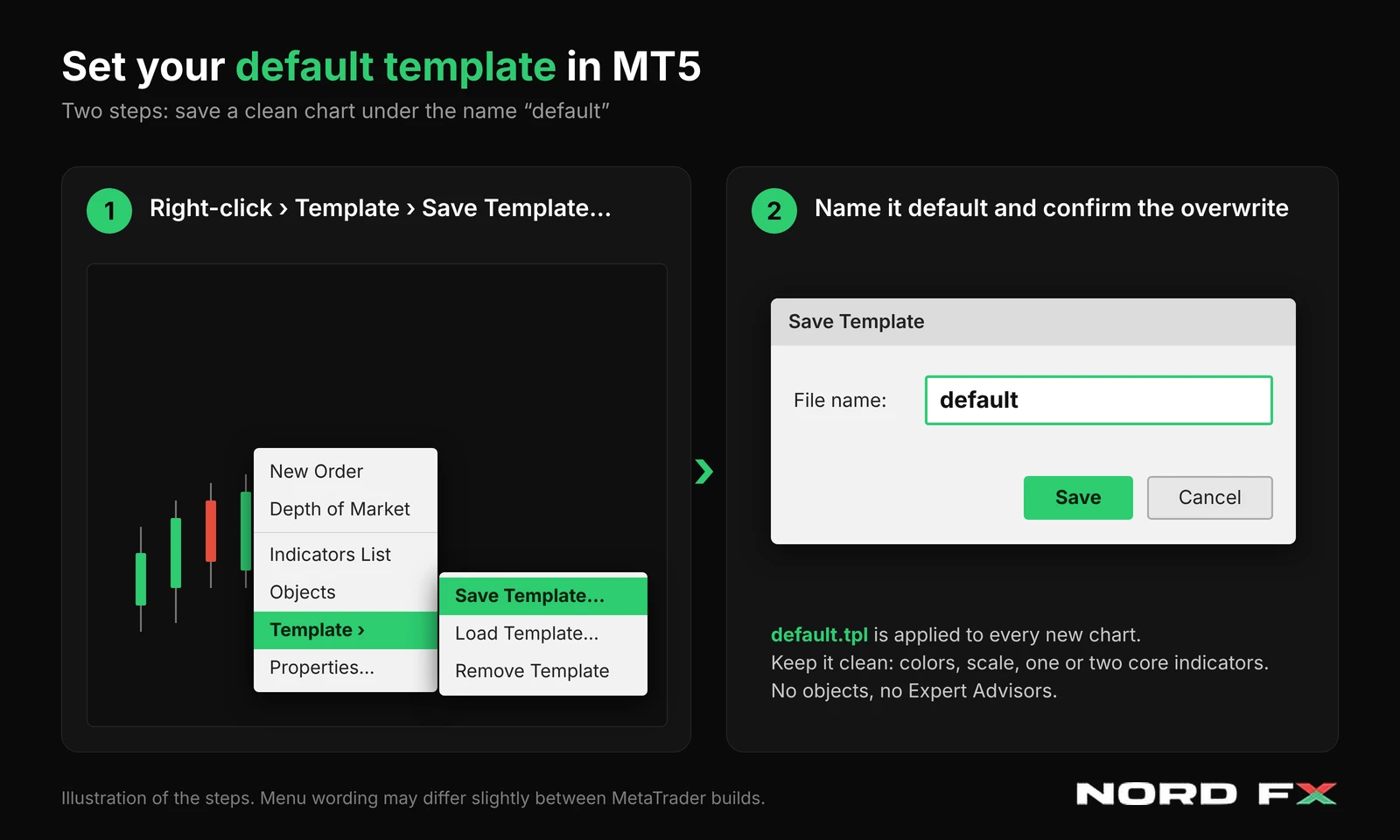
- Right-click the chart, choose Template, then Save Template. The Templates button on the Charts toolbar does the same.
- Name the template default and confirm when the platform asks whether to overwrite the existing one.
- Open a new chart for a different instrument and check that your setup appears.
How to create a tester template in MT5
If you test Expert Advisors, a tester template follows the same logic as the default one. Open any chart, arrange the colors and indicators you want to see in backtest results, save the template under the name tester, and confirm the overwrite if asked. The next time you run a test, the results chart should use your setup. Run a short test on demo data first to confirm that it behaves as you expect.
What the default template changes, and what it does not
- It affects new charts only. Charts that are already open keep their current look. To restyle them, apply the template manually from the chart context menu.
- Dragging an instrument from Market Watch onto an open chart swaps the symbol but keeps the settings of that chart. In MT5, holding Ctrl while dragging opens a new chart in a separate window with the default template.
- Charts restored from a profile come back as that profile saved them. The default template does not override a saved workspace.
- It stores chart settings only. It does not store trades, pending orders, balance or history.
What belongs in a default template
A good default template is a neutral base that works on any instrument. Everything specific to one market, one strategy or one price level belongs in a named template that you apply on purpose.
Element | Keep in default? | Reason |
Colors, chart type and grid | Yes | Gives every chart a readable base |
Scale and OHLC line | Yes | Keeps all charts consistent |
Volumes | Optional | Depends on whether you read them on every instrument |
One or two core indicators, such as a moving average | Yes | Useful on almost any market |
Instrument-specific indicators | No | Better stored in separate named templates |
Drawn objects such as trend lines and levels | No | They belong to the price history of one chart |
Expert Advisor | No | It would attach to every new chart |
The Expert Advisor trap
A template can store a running Expert Advisor with its parameters. That is useful for named templates, but dangerous in the default one. If default.tpl contains an Expert Advisor, every new chart you open will attach it. With automated trading enabled, an EA sitting on a chart you opened just to check a price may act on that instrument.
Keep the default template free of automation, and store EA setups in clearly named templates that you apply deliberately. Test any change on a demo account before using it on a live one. If you do not have a demo account yet, our guide to opening an MT4 demo account shows how.
How the default template fits with templates and profiles
Think of three layers. The default template is the starting point for any new chart. Named templates, such as a swing setup or a gold setup, are applied on top for a particular job. A profile saves the whole workspace: which charts are open, where they sit, how big they are and which templates they use.
A clean default template saves work at the first layer. It does not replace the other two. A trader who opens ten charts every morning still benefits from a profile, and a trader who switches between strategies still needs named templates.
A practical example
Imagine a trader who follows EUR/USD, gold and Bitcoin CFDs on the NordFX MT5 platform. They build a neutral default: candlesticks, a light background, a 50-period moving average and nothing else. Every new chart now opens ready for a quick look, with no leftover lines and no automation.
For closer work they keep two named templates, one for gold volatility and one for crypto trend, and apply them only when needed. Their morning charts are saved as a profile. When they open an unexpected instrument during the day, the default template gives them a clean chart in one step instead of five minutes of formatting.
How to back up, change and reset the default template
- Back up: open the data folder and copy default.tpl, and tester.tpl if you made one, to another folder or cloud storage before changing anything.
- Change: set up a chart the way you want and save it again under the name default, confirming the overwrite.
- Reset: because the default template cannot be deleted, build a plain chart with no indicators, no objects and no EA, then save it as default. Or copy your backup file back into the templates folder.
- Move to a new computer or VPS: copy the .tpl files into the same folder of the new installation. Install any custom indicators used in the template as well, otherwise they will not load.
Both MetaTrader platforms are available at NordFX, and you can compare them on the NordFX trading platforms page.
Common mistakes with default templates
Mistake | What happens | Fix |
Saving a chart with an EA as default | The EA attaches to every new chart | Re-save default from a clean chart |
Overloading the default with indicators | New charts look cluttered and need cleaning up | Keep one or two core tools only |
Expecting open charts to change | Old charts keep their old look | Apply the template manually |
Leaving objects on the saved chart | Old lines and levels appear on new charts | Remove objects before saving |
Overwriting without a backup | The previous setup is lost | Copy default.tpl first |
Skipping a demo check | Surprises on a live account | Test changes on demo first |
FAQ
Where is default.tpl in MT4 and MT5?
It is in the platform data folder. In MT4 look in the templates subfolder. In MT5 look in MQL5\Profiles\Templates. Use File, then Open Data Folder, to get there quickly.
Can I delete the default template?
No. It can be modified, but not removed. To reset it, save a plain chart under the name default.
Does the default template change charts that are already open?
No. It is applied to new charts only. Open charts need a template applied manually.
Does a template save my open trades?
No. Templates store chart settings. Trades, pending orders and account history are not part of a template.
Is there a separate template for the Strategy Tester?
In MT5, tester.tpl is applied to the chart that shows test results. Save a chart under that name to make backtests open with your own look.
Can I use the same default template in MT4 and MT5?
Set it up separately in each platform. The steps are the same, but each platform keeps its own template files.
Should beginners set a default template?
Yes, as long as it is simple. A clean base with one or two familiar tools is enough. Practice the steps on a demo account first.
Key takeaways
- The default template, default.tpl, is applied automatically to every new chart in MT4 and MT5.
- It cannot be deleted, but you can replace it by saving your own chart under the name default.
- It affects new charts only. Open charts and saved profiles keep their own state.
- Keep it neutral: colors, scale and one or two core indicators, with no objects and no Expert Advisors.
- Back up the .tpl files before changes, and test everything on a demo account first.
Editorial note
This article is educational and neutral. MetaTrader 4 and MetaTrader 5 are third-party platforms and are not owned by NordFX. Menu names and file locations can differ slightly between builds and operating systems.
Go Back Go Back
