Last updated: October 2026
A MetaTrader 4 (MT4) demo account allows you to explore the trading platform, practise placing orders and test trading strategies using virtual funds instead of real money. It is a useful way for beginners to become familiar with MT4 and for more experienced traders to test new approaches or settings.
NordFX offers demo accounts for MetaTrader 4 as well as MetaTrader 5 (MT5). The general account-opening process is similar, although the platform interface and available account options may differ.
In this guide, we explain how to open a NordFX MT4 demo account, log in to the platform and start practising.
Key Takeaways
- An MT4 demo account lets you practise trading with virtual funds without risking real money.
- NordFX demo accounts are free and have no fixed expiry date, but inactive demo accounts may be deleted after 14 days.
- You can create a demo account through the NordFX Personal Area.
- MT4 demo accounts allow you to practise order placement, chart analysis and platform navigation under simulated trading conditions.
- Demo trading can help you learn how the platform works, but results may differ from live trading.
What Is an MT4 Demo Account?
An MT4 demo account is a simulated trading account that allows you to use the MetaTrader 4 platform with virtual funds.
The platform provides access to charts, technical indicators, order types and other trading tools without requiring you to risk real funds.
A demo account can be useful for:
- learning how to use MetaTrader 4;
- practising how to open, modify and close orders;
- becoming familiar with charts and technical indicators;
- testing trading strategies;
- experimenting with different account settings;
- testing Expert Advisors (EAs) and other trading tools.
However, demo trading should not be considered identical to live trading. Execution conditions, liquidity, slippage and the psychological impact of trading with real money can affect live trading results.
How to Open an MT4 Demo Account with NordFX
Opening a NordFX demo account takes only a few steps.
Step 1: Log In to the NordFX Personal Area
Log in to your NordFX Personal Area using your email address and password.
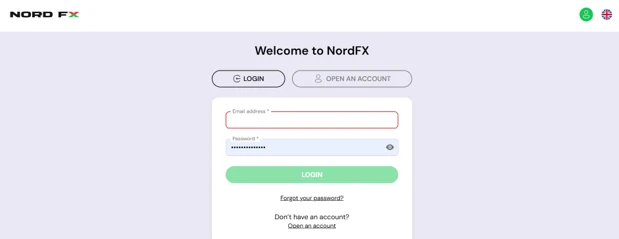
NordFX Personal Area login page
Select Trading accounts from the menu on the left.
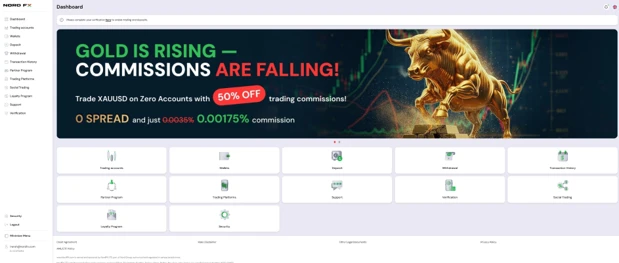
NordFX Dashboard with Trading accounts in the left menu
If you do not yet have access to the NordFX Personal Area, complete the registration process first.
Step 2: Open the Demo Account Section
Go to Trading Accounts and select the option for opening a Demo account.
The demo section allows you to create an account using virtual funds and select the available trading platform and account settings.
Step 3: Select MetaTrader 4
Choose MetaTrader 4 (MT4) as your trading platform.
Select one of the available MT4 demo account types, such as MT4 Pro Demo or MT4 Zero Demo, depending on the trading conditions you want to practise with.
Available account types and settings may change, so always check the options displayed in your NordFX Personal Area.
Step 4: Choose Your Demo Account Settings
Select the required demo account settings and confirm the account creation.
Depending on the available options, you may be able to select parameters such as the account type, leverage or initial virtual balance.
Remember that the funds in a demo account are virtual and cannot be withdrawn.
Step 5: Save Your Account Details
Once your demo account has been created, save the account details provided to you.
These normally include:
- Account Number (Login)
- Trader's Password
- Server Name
You will need these details to connect MT4 to your demo trading account.
For accounts registered through MT4, the registration information may also be available in the platform's internal Mailbox.
How to Download and Install MetaTrader 4
If MT4 is not already installed on your computer, download the MetaTrader 4 platform from the NordFX website. The desktop menu instructions below refer to MT4 on a computer; mobile navigation differs.
Step 6: Download MT4
Go to the NordFX trading platforms section and download MetaTrader 4 for your device.
Use the NordFX download provided on the official website to make sure you install the appropriate platform version.
Step 7: Install MT4
Open the downloaded installation file and follow the on-screen instructions.
Once installation is complete, launch MetaTrader 4.
How to Log In to Your MT4 Demo Account
After installing MT4, you need to connect the platform to the demo account you created.
Step 8: Open the Login Window
In MT4, select:
File → Login to Trade Account
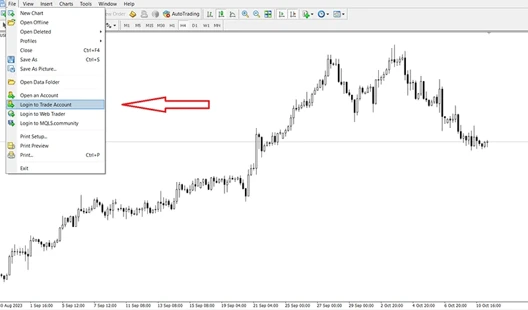
MT4 File menu showing Login to Trade Account
Step 9: Enter Your Demo Account Details
Enter:
- your Login;
- your Trader's Password;
- the correct Server.
Make sure you select the server specified in your demo account details.
Then click Login.
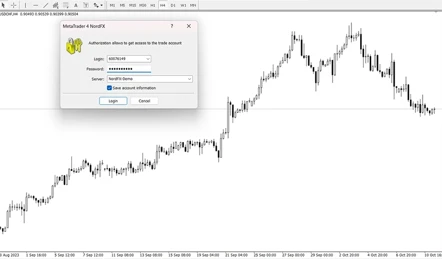
MT4 login dialog with Login Password and Server fields
Step 10: Check the Connection
Once MT4 connects successfully, market prices should begin updating.
You can also check the connection status in the lower-right area of the platform.
If MT4 does not connect, check that:
- the login number is correct;
- the password has been entered correctly;
- the correct trading server is selected;
- your internet connection is working.
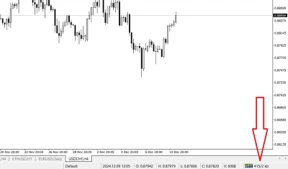
MT4 connection status in the lower-right corner
Alternative: Open a Demo Account from MT4
You can also start the demo-account registration process directly from MetaTrader 4.
In MT4, select:
File → Open an Account
Alternatively, open the Navigator, right-click Accounts, and select Open an Account.
Follow the instructions displayed by the platform to find the appropriate NordFX server and proceed with demo-account registration.
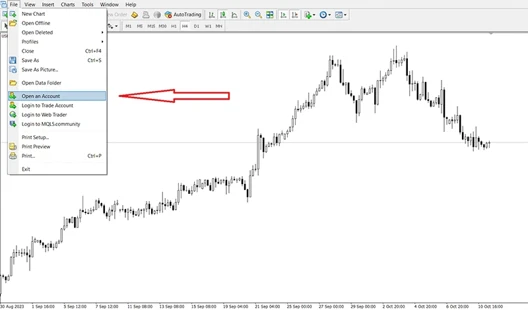
MT4 File menu showing Open an Account
Select the appropriate NordFX demo server in the trading-server list, then follow the on-screen instructions. Use the server details supplied for your account; the name shown in the illustration is an example.
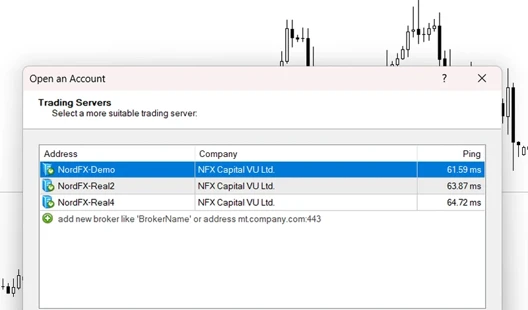
MT4 trading-server selection
If MT4 redirects you to a web page, follow its instructions to complete registration. The demo-registration page linked in the original guide is also available for the older Personal Area workflow. Use the current Personal Area route above when opening an account in the new interface.
What Can You Do with an MT4 Demo Account?
Once your demo account is connected, you can use it to become familiar with the MT4 trading environment.
Practise Opening and Closing Trades
You can practise placing market and pending orders, setting Stop Loss and Take Profit levels, modifying positions and closing trades.
Explore Charts and Indicators
MT4 includes multiple chart timeframes, technical indicators and graphical tools that can be used to analyse historical and current price movements.
Test Trading Strategies
A demo account can be used to test trading ideas and become familiar with how a strategy behaves under different market conditions.
Remember that successful demo results do not guarantee similar results in live trading.
Test Expert Advisors
MT4 also supports Expert Advisors (EAs), allowing traders to test and practise automated trading strategies.
Before using any automated system on a live account, it is important to understand how it operates and the risks involved.
Demo Account vs Live Account
Although the MT4 interface is broadly similar for demo and live accounts, there are important differences.
A demo account uses virtual funds, so trading decisions do not involve real financial risk. Live trading uses real money and may also be affected by market liquidity, execution conditions, slippage and trading psychology.
For this reason, results achieved on a demo account should not be considered a guarantee of future live trading performance.
Common Problems When Logging In
Invalid Account
Check that the account number and password have been entered correctly.
No Connection
Check your internet connection and make sure you have selected the correct NordFX trading server.
Incorrect Password
Make sure you are using the Trader's Password, not another password associated with your NordFX account.
For a demo account, registration credentials may also be available in the Mailbox section of MT4.
If the demo password is no longer available and cannot be remembered, you can create a new demo account.
Wrong Server
A correct login and password will not work if the wrong trading server is selected. Use the server specified in your demo account details.
Frequently Asked Questions
Is an MT4 demo account free?
Yes. NordFX demo accounts are free and use virtual funds. They have no fixed expiry date, but a demo account may be deleted if it remains inactive for more than 14 days.
Do I need to deposit money to open a demo account?
No. Demo accounts use virtual funds, so no real-money deposit is required.
Do I need to verify my identity to open an MT4 demo account?
Documents are not normally required to open a NordFX demo account. Account verification may be required in certain cases.
Can I open more than one demo account?
Yes. Additional demo accounts can be useful for testing different account settings, platforms or trading strategies.
Can I open an MT5 demo account instead?
Yes. NordFX also provides demo accounts for MetaTrader 5. The general account-opening process is similar, although MT5 has a different interface and additional platform functionality.
Can I use Expert Advisors on a demo account?
Yes. MT4 supports Expert Advisors, and a demo account can be useful for testing how an EA operates before considering its use with real funds.
What happens if I forget my MT4 demo account password?
Check the registration message in the Mailbox section of MT4, where demo account credentials may be stored after registration.
If you no longer have the password and cannot recover it from the registration information, you can open a new demo account.
Is demo trading the same as live trading?
No. A demo account is designed to simulate trading, but live trading may differ because of liquidity, execution conditions, slippage and the psychological effects of trading with real money.
Final Thoughts
Opening an MT4 demo account is a practical way to become familiar with MetaTrader 4 before trading with real funds.
A demo account allows you to explore charts, practise order placement, test trading approaches and learn how the platform works using virtual funds.
However, demo trading should be viewed as a learning and testing environment rather than a prediction of future trading performance. Market conditions and execution can differ in live trading, and past or simulated results do not guarantee future outcomes.
Once you understand the platform and are comfortable with its basic functions, you can decide whether you are ready to move from a demo environment to live trading.
Go Back Go Back