How do you start using NordFX AI Trading?
Once you've connected ChatGPT or Claude to your NordFX Personal Area, you can start with a simple request: "NordFX, what can you do?" Your AI assistant can help you check account balances, retrieve market prices, analyse trading performance and access supported MT5 trading and account management functions. The available actions depend on your permissions and the AI application you use.
NordFX AI Trading allows you to interact with your trading accounts and Personal Area using natural language. Instead of navigating between different platform screens, you can ask questions, retrieve information and request supported operations directly from a conversation.
This guide covers practical ways to get started, with examples you can copy, adapt and try on your own account.
1. Start by Exploring What Your AI Assistant Can Do
If you haven't connected an AI assistant yet, follow one of our setup guides:
Once connected, open a conversation with your NordFX integration enabled and enter:
"NordFX, what can you do?"
Your assistant can explain which NordFX functions are available, including account information, market data, trading analytics and supported operations.
You can then narrow your questions to a particular task. For example:
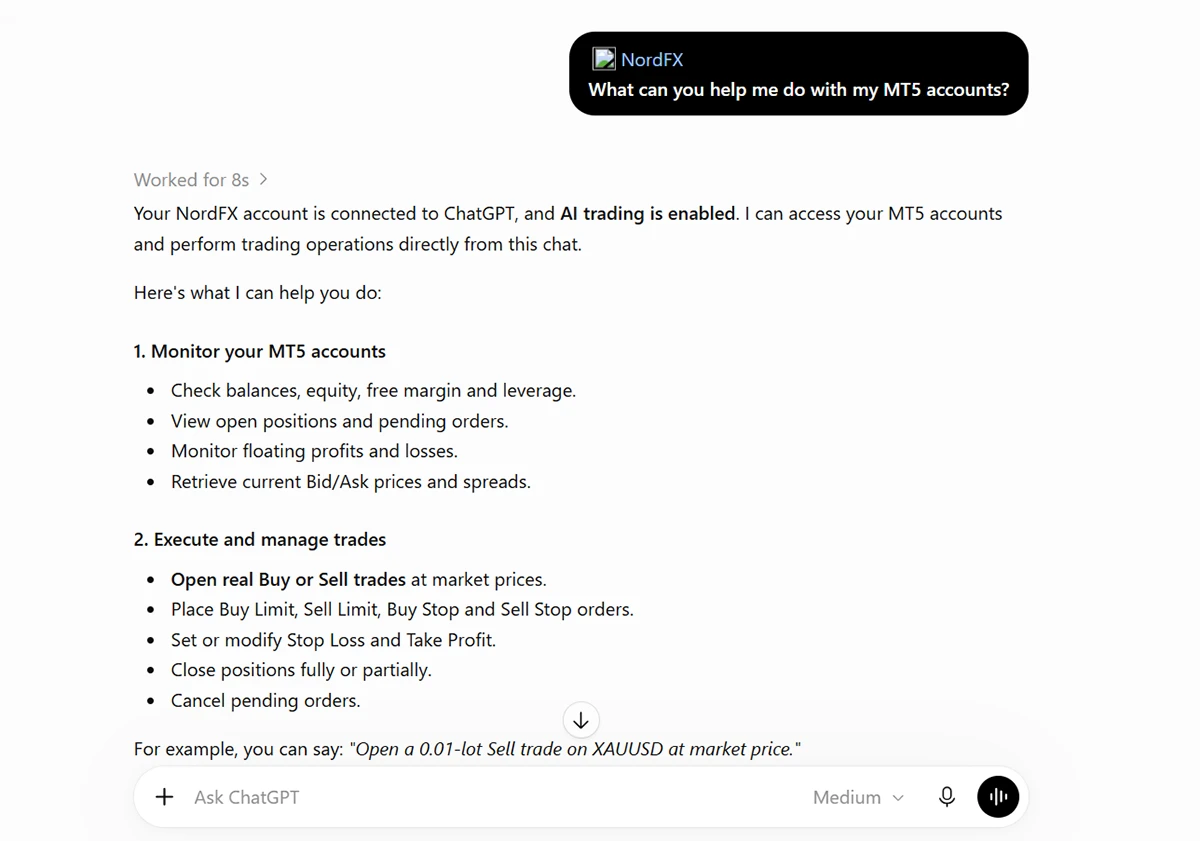
"What can you help me do with my MT5 accounts?"
You don't need to memorise special commands. Describe what you want in ordinary language, and the assistant will determine whether an appropriate NordFX function is available.
Some operations require permissions you may not have enabled during setup. You can begin with read-only access and explore your account information before deciding whether to authorise additional functions.
2. Get to Know Your Trading Accounts
One of the easiest ways to begin is by asking your AI assistant to explain your current account status.
Try:
"Show all my NordFX trading accounts and their current balances."
The assistant can retrieve your active real and demo MT5 accounts, including information such as account type, currency, leverage, balance and equity.
If you have several accounts, you can specify which one to examine.
For a more detailed overview, ask:
"Show the current state of my real MT5 account, including equity, used margin, free margin and margin level."
You can then follow up with:
"Explain the difference between my balance, equity and free margin."
Your assistant can combine the retrieved figures with explanations of the trading terms.
This is particularly useful for beginners who are still learning how margin trading works.
Check Your Open Positions
You can also review your current trading exposure.
"Show all my open positions, including their entry prices, volumes and current profit or loss."
After receiving the information, ask:
"Which positions are currently profitable, and which have the largest unrealised losses?"
The assistant can help you organise and interpret the available figures. The results reflect the account information returned by NordFX at the time of the request.
3. Explore Market Prices and Trading Instruments
NordFX AI Trading provides access to market quotations and historical price data for instruments available on your MT5 account.
Start with:
"Show the current Bid, Ask and spread for EURUSD, GBPUSD and XAUUSD."
Your assistant can retrieve the requested quotations and explain the difference between the buying and selling prices.
You can also explore the instruments available for trading on your account:
"Which cryptocurrencies are available on my MT5 account? Show their current trading status."
The available instruments and trading conditions depend on your account type and configuration.
Examine Historical Price Movements
You can move beyond current quotations and explore historical prices.
For example:
"Show the hourly price data for gold over the last 24 hours."
Then continue with:
"What were the highest and lowest prices during this period, and how much did the price change?"
The assistant can use the retrieved price data to calculate changes and explain what happened during the selected period.
You can also ask about other timeframes or compare the movements of different instruments.
Remember that market data may change rapidly. Always check the quotation timestamp, especially when using the information to make a trading decision.
4. Analyse Your Trading Performance
If you already trade on a real NordFX MT5 account, AI Trading can help you examine your results in greater detail.
Start with a general performance review:
"Analyse my trading results for the last 30 days. Show my net profit or loss, win rate and profit factor."
The NordFX analytics service calculates performance statistics from available trading history. Your AI assistant can then explain the figures and help you explore them.
Find Patterns in Your Trading History
Once you have an overview, explore particular aspects of your performance.
"Compare my results from buy and sell trades over the last three months."
Or:
"Which instruments generated the highest profits and losses during this period?"
You can also examine the timing of your trades:
"Which trading hours have been the most profitable for me?"
These questions can help you investigate patterns that may be difficult to spot when reviewing individual trades.
For a more specific comparison, try:
"Compare my average winning trade with my average losing trade. What does this tell me about my trading results?"
The assistant can explain the statistics, identify differences and help you formulate additional questions.
Historical results do not guarantee future performance. AI-generated interpretations should be reviewed critically rather than treated as trading recommendations.
5. Open and Manage MT5 Accounts
NordFX AI Trading also supports selected Personal Area functions, including opening new MT5 accounts.
If you are new to trading or want to explore the integration without using real funds, you can start with a demo account.
Try:
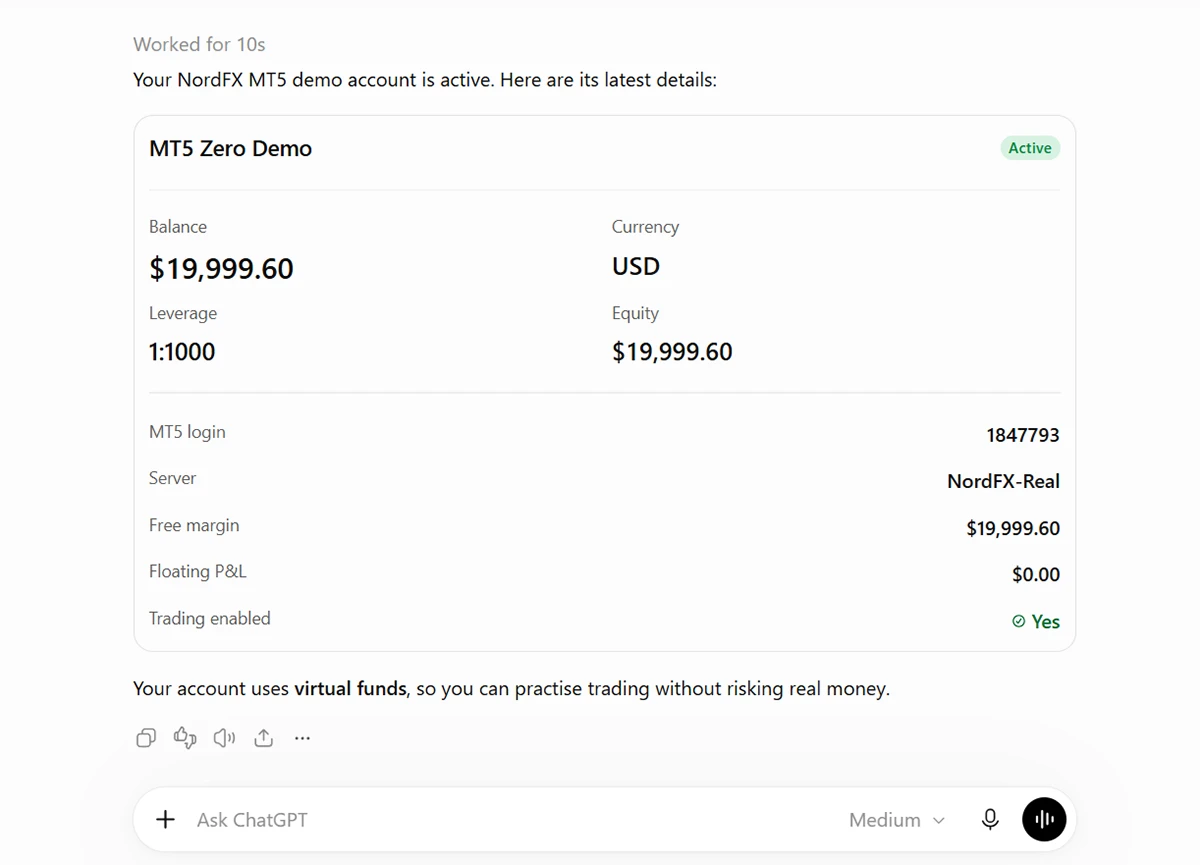
"Open a new MT5 demo account with $10,000 in virtual funds."
If you have granted the required account-opening permission, the assistant can request creation of the account through NordFX.
Once the account is created, ask:
"Show my new demo account details, including its balance, currency and leverage."
You can then use the account to explore supported trading functions with virtual funds.
Manage Existing Accounts
The integration also supports certain account management operations.
For example:
"What leverage is currently set on my MT5 accounts?"
Or:
"Which leverage options are available for my real MT5 account?"
Changing leverage requires the appropriate permission and is subject to NordFX account conditions. Some changes may be unavailable while positions are open.
You can also request a virtual balance top-up for an eligible demo account.
One connection covers all your active NordFX MT5 accounts. New accounts become accessible automatically without reconnecting your AI assistant.
MT4 accounts are not supported.
6. Try Trading Functions with AI
Trading is another supported area of NordFX AI Trading. Depending on the permissions you have granted and the capabilities of your AI assistant, you may be able to place orders, manage positions and close trades directly from a conversation.
If you are exploring these functions for the first time, consider using a demo account.
Check Trading Conditions Before Placing an Order
Start by requesting the information you need:
"Show the current XAUUSD price, minimum lot size and volume step for my demo account."
Then check your account status:
"What is my available margin, and is XAUUSD currently available for trading?"
These requests help you review the relevant account information and instrument conditions before submitting an order.
Place a Demo Trade
If trading permissions are enabled and your assistant supports order execution, you can submit an instruction such as:
"Open a buy position of 0.01 lots on EURUSD at market price on my demo MT5 account."
The assistant may ask for confirmation depending on its own rules.
7. Use AI for Personal Area Functions
NordFX AI Trading extends beyond market data and MT5 trading. It can also help with supported account administration and funding-related tasks.
Review Payment Information
You can ask:
"What deposit and withdrawal methods are available for my NordFX account?"
The assistant can retrieve available payment methods, applicable limits and relevant fees.
You can also check previous transactions:
"Show my deposit and withdrawal history for the last 30 days."
Access Funding Functions
Depending on your permissions, you can request a supported cryptocurrency deposit address or initiate an internal transfer between your own eligible NordFX accounts.
For example:
"Show the available cryptocurrency deposit options for my account."
Some operations, including withdrawals and fiat deposits, must still be completed through the NordFX Personal Area.
Check Verification Status or Contact Support
Try:
"What is my current NordFX verification status?"
If further verification is required, the assistant can help you find the appropriate verification page.
You can also request assistance from NordFX support:
"Create a support request about an issue with my trading account."
When supported, the assistant can submit a support ticket through NordFX. The support team's reply will be sent by email.
8. How to Get Better Results from Your AI Assistant
The quality of your requests can make a difference, especially when you have several trading accounts or want to examine a particular period.
Here are five practical habits to follow.
1. Specify the account. If you have multiple accounts, mention whether you mean your real or demo MT5 account. Use the account number when necessary.
2. Be precise about instruments and periods. Instead of asking "How is gold doing?", try "Show XAUUSD hourly prices for the last 24 hours."
3. Use follow-up questions. You can start with a general performance review and then ask for more detail about commissions, particular instruments or trading hours.
4. Verify actions that change your account. When requesting trades or transfers, check their actual status rather than relying only on the assistant's description.
5. Protect your account information. Never provide passwords, one-time security codes or payment card details in a chat. NordFX authorisation is handled through the secure Personal Area login process.
You can use ordinary language throughout. If the assistant needs an account number, trading symbol, amount or another parameter, it can ask you to clarify the request.
9. Manage Your Permissions and Connection
You control which NordFX functions your AI assistant can access.
To review your connection, sign in to your NordFX Personal Area and navigate to:
Security → AI Connections
Here, you can review connected applications, check their permissions, disable AI trading or disconnect an application completely.
If you initially selected read-only permissions and later want to enable additional functions, you currently need to disconnect and reconnect the AI application, selecting the new permissions during authorisation.
Disabling AI trading or disconnecting an application does not close existing positions, cancel pending orders or remove Stop Loss and Take Profit levels. Orders already accepted by NordFX may also continue processing.
Continue Exploring NordFX AI Trading
The examples in this guide are starting points. You can combine requests, ask for more detailed explanations and explore other supported functions as you become familiar with the integration.
Whether you use ChatGPT or Claude, the NordFX connection provides access to the same underlying services and permissions. The way each assistant handles requests, confirmations and individual operations may differ.
返回 返回
