How do I connect Claude to my NordFX account?
Short answer: To connect Claude to NordFX, open Connectors in Claude, add a custom connector using https://mcp.nordfx.com/mcp, and select the recommended authentication settings. Then sign in to your NordFX Personal Area, choose your permissions, accept the AI Trading Terms and click Allow. Once connected, you can use Claude to access your trading accounts, market data and supported NordFX services.
Claude, the AI assistant developed by Anthropic, can connect directly to your NordFX Personal Area. You can use natural-language requests to check account balances, retrieve market prices, analyse trading performance and manage supported trading and account functions.
The connection uses Model Context Protocol (MCP), which allows Claude to communicate with NordFX services. No programming, API keys or locally installed MetaTrader terminal are required.
This guide explains how to set up the connection and what to try afterwards.
What You Need Before Starting
Before connecting, make sure you have:
- A registered NordFX Personal Area. You don't need an existing trading account. Once connected, you can ask Claude to open a real or demo MT5 account, subject to NordFX account requirements and the permissions you grant.
- A Claude account. Custom MCP connectors are available on Claude Free, Pro, Max, Ultra, Team and Enterprise plans. Free users can add one custom connector. On managed workspaces, availability may depend on administrator settings.
NordFX AI Trading supports real MT5 Pro and Zero accounts and MT5 demo accounts. MT4 accounts are not supported.
NordFX does not charge an additional integration fee. Normal trading charges and any applicable Claude subscription fees still apply.
How to Connect Claude to NordFX
Step 1. Open Connectors in Claude
- Go to Claude and sign in.
- Open Customize from the Claude interface.
- Select the Connectors tab.
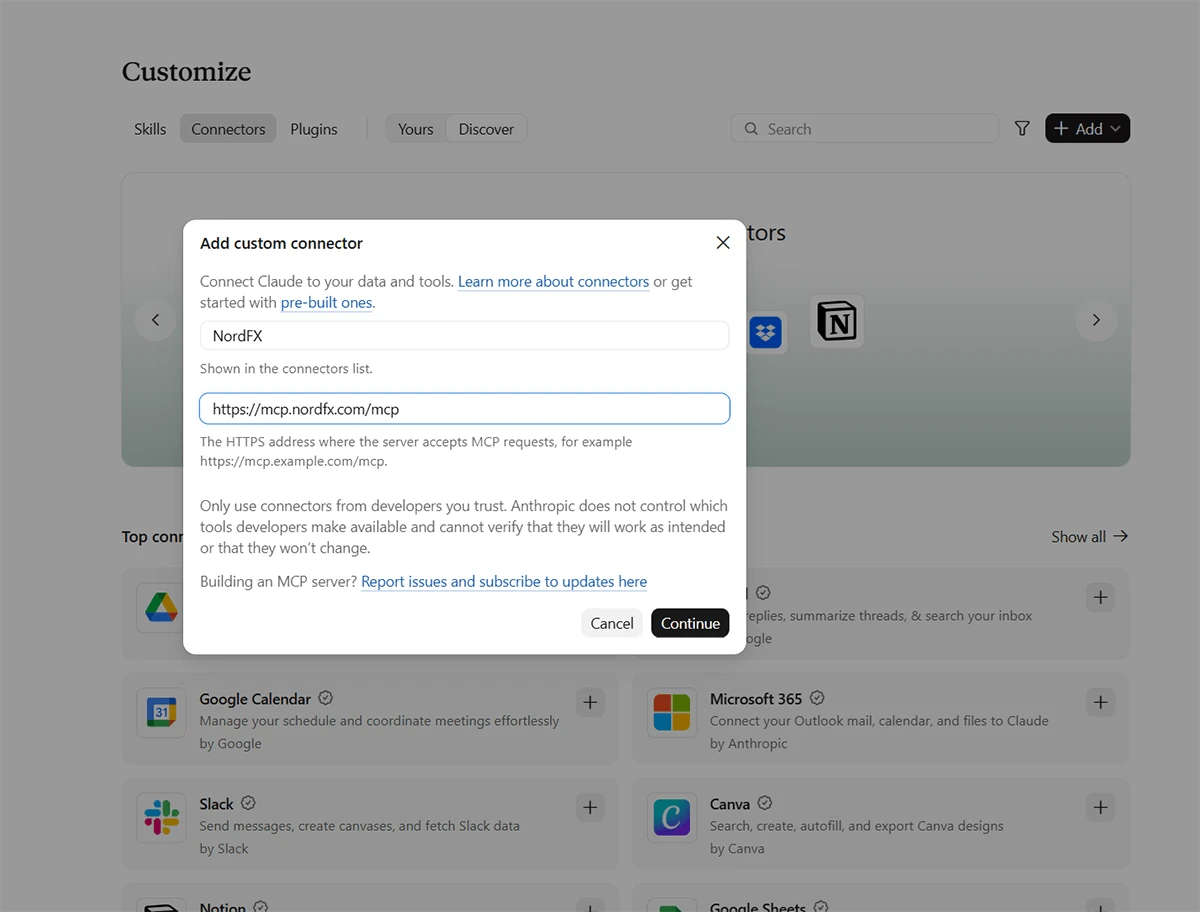
- Click Add and select the option to add a custom connector.
This opens the Add custom connector window.
Step 2. Add the NordFX Server
Enter the following details:
- Name: NordFX
- Remote MCP server URL: https://mcp.nordfx.com/mcp
Click Continue.
Step 3. Configure Authentication
Claude will display the authentication settings detected for the NordFX server.
Use the following settings:
Authentication
- Select Sign in now.
OAuth client
- Select Use Claude's published identity.
These settings allow Claude to authenticate through NordFX using OAuth, without requiring you to create API keys or configure a separate OAuth client.
You do not need to add custom request headers.
If you open Advanced, the transport should be set to Streamable HTTP.
Click Add to create the connector.
Step 4. Connect to Your NordFX Personal Area
After adding the connector, Claude displays the NordFX connection page.
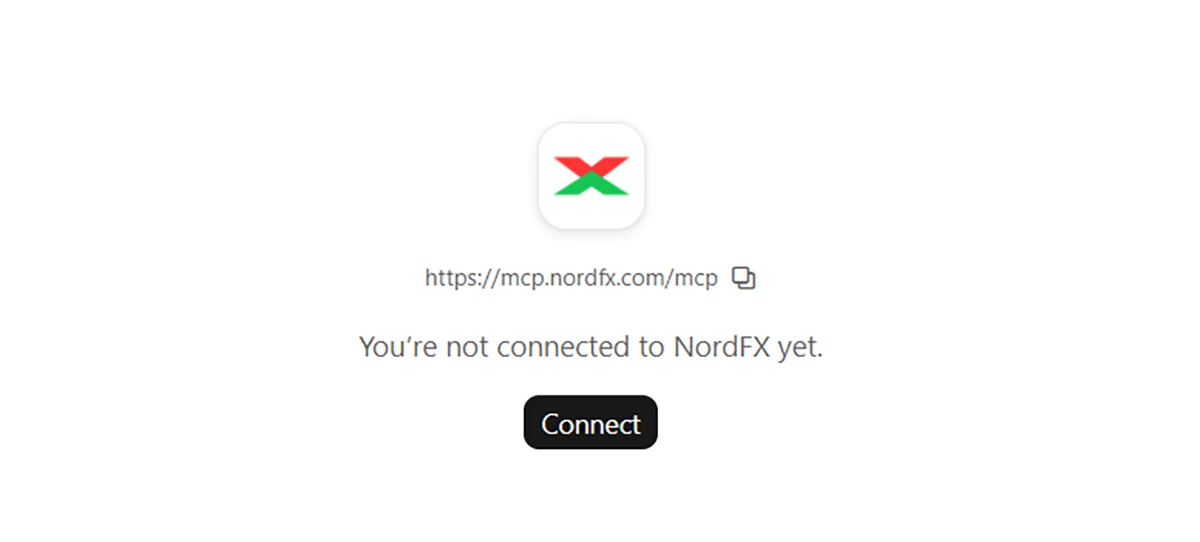
Click Connect.
You will be redirected to the NordFX website. Sign in to your NordFX Personal Area using your registered email address and password.
Step 5. Choose Your Permissions
After signing in, NordFX displays the Allow this app to access your account? page.
Here, you choose which information Claude can access and which actions it may perform on your behalf.
Available permissions include:
- Viewing your trading accounts, wallets and balances.
- Accessing market prices, open positions, orders and trading history.
- Opening new real or demo MT5 accounts.
- Managing eligible accounts, including leverage changes and demo-balance top-ups.
- Accessing supported deposit and internal transfer functions.
- Placing and closing trades.
- Checking verification status and contacting NordFX support.
For your first connection, you can start with read-only permissions.
For example, you can enable:
- See your trading accounts, wallets and balances
- See market prices, your positions, orders and deals
- See your deposits, withdrawals, transfers, payment methods and limits
These permissions are sufficient to explore account information, retrieve market quotations and analyse available trading history without enabling trading or money transfers.
You can grant additional permissions according to the functions you want to use.
Before continuing, read the AI Trading Terms and check I have read and accept the AI trading terms. This is required regardless of which permissions you select.
Click ALLOW to authorise the connection.
Step 6. Start Using NordFX in Claude
After authorisation, return to Claude and open a new conversation.
Click the + button in the message field, open Connectors and make sure NordFX is enabled.
You can now ask Claude questions or give instructions related to your connected NordFX Personal Area and MT5 accounts.
The available actions depend on your NordFX permissions, account conditions and Claude's capabilities.
Check That Your Connection Works
Start with a simple request:
"What can you do?"
Claude will show you the available NordFX features, such as viewing trading accounts and balances, checking market prices, analysing trading performance, managing MT5 accounts and performing supported trading operations.
The actions you can use depend on the permissions you granted during connection and Claude's capabilities.
One NordFX connection covers all your active MT5 accounts, including real and demo accounts. Newly opened accounts also become available automatically, without reconnecting.
If you don't have an MT5 account yet, you can ask Claude to open a real or demo account, provided the required permissions are enabled.
Four More Prompts to Try
Once your connection is working, try these examples to explore what Claude can do with your NordFX account.
1. Open an MT5 Demo Account
"Open a new MT5 demo account with a virtual balance of $10,000."
Claude can help you create an MT5 demo account directly from the chat, provided you have granted permission to open new trading accounts.
Demo accounts let you practise trading with virtual funds under simulated trading conditions. You can also ask Claude to check your demo balance or add more virtual funds if you have enabled account management permissions.
2. Review Your Open Positions
"Show all my open positions and calculate their combined floating profit or loss."
Claude can retrieve your open MT5 positions, including instruments, trade directions, volumes, entry prices and current profit or loss.
You can also ask follow-up questions, such as:
"Which of my open positions has the largest unrealised loss?"
This helps you monitor your trading activity without switching between the chat and your trading platform.
3. Analyse Your Trading Patterns
"Analyse my trading performance over the past three months. Which trading days have been the most profitable?"
Claude can use your real-account trading history and NordFX performance statistics to examine profitability across different trading periods.
4. Place a Trade
"Sell 0.01 lots of XAUUSD at market price on my MT5 account."
If you have enabled trading permissions, Claude can submit supported trading orders to NordFX.
Before placing an order, make sure you have specified the correct trading account, instrument, direction and volume. You can also include Stop Loss and Take Profit levels in your instruction.
After execution, ask Claude to check the position and confirm its actual status.
Claude can also help you close positions, cancel pending orders and manage Stop Loss and Take Profit levels, subject to account conditions and granted permissions.
Troubleshooting Common Connection Problems
I Can't Find Add Custom Connector
Check that you are using the Connectors section under Customize.
Custom MCP connectors are supported on Claude Free, Pro, Max, Ultra, Team and Enterprise plans, although limits and administrator controls may apply.
For additional information, consult Claude's official connector documentation.
Claude Doesn't Use the NordFX Connector
Check that NordFX is connected and enabled for your conversation.
Click the + button in the chat, open Connectors, and enable NordFX if necessary.
You can also explicitly mention NordFX in your request, for example:
"Using my NordFX connection, show my open MT5 positions."
Claude Declines a Trading or Account Operation
First, check whether the necessary permission is enabled in NordFX.
If it is, the action may still be unavailable because of account restrictions, trading conditions or Claude's own limitations.
NordFX permissions determine which operations are authorised on the broker's side. Claude may apply additional checks or decline certain requests.
How to Manage or Disconnect Your Connection
You can review and manage Claude's access at any time from your NordFX Personal Area.
Sign in and navigate to:
Security → AI Connections
Or open the AI Connections page directly.
Here, you can view connected AI applications, review their permissions and disable AI trading without removing other access.
To revoke Claude's access completely, click Disconnect.
You can also manage the connector in Claude under Customize → Connectors, where you can review connection settings or remove the connector.
Disconnecting Claude does not close open positions, cancel pending orders or remove existing Stop Loss and Take Profit levels. These remain active according to your MT5 trading conditions.
You can reconnect later if you wish to use NordFX AI Trading again.
Explore More with NordFX AI Trading
Once connected, you can use Claude to monitor your MT5 accounts, examine market data, analyse trading results and access supported trading and Personal Area functions through natural-language requests.
For more information about available features, permissions and supported operations, visit the NordFX AI Trading page.
You can also follow our step-by-step ChatGPT connection guide if you prefer using ChatGPT with NordFX.
திரும்பிச் செல்லவும் திரும்பிச் செல்லவும்
