How do I connect ChatGPT to my NordFX account?
Short answer: To connect ChatGPT to NordFX, open Plugins in ChatGPT, select Add custom MCP server, and enter https://mcp.nordfx.com/mcp. Sign in to your NordFX Personal Area, choose your permissions, accept the AI Trading Terms, and click Allow. You can then select NordFX in ChatGPT to access your account information, market data and supported functions.
Connect ChatGPT to your NordFX Personal Area and use everyday language to check account balances, access market prices, analyse trading performance and manage supported account functions.
With NordFX AI Trading, ChatGPT can retrieve information directly from NordFX and work with your MT5 accounts. No programming, API keys or locally installed MetaTrader terminal are required.
This guide walks you through the connection process and shows you what to try once you're connected.
What You Need Before Starting
Before connecting, make sure you have:
- A registered NordFX Personal Area. You don't need an existing trading account. The integration supports opening real and demo MT5 accounts through AI, subject to account requirements, granted permissions and the AI application's capabilities.
- A ChatGPT account with access to custom MCP connections. Availability depends on your ChatGPT subscription and workspace permissions.
NordFX does not charge an additional integration fee. Normal trading charges and any applicable ChatGPT subscription fees still apply.
How to Connect ChatGPT to NordFX
Step 1. Open Plugins in ChatGPT
- Sign in to ChatGPT.
- Open the Plugins section.
- Click Add and select Add custom MCP server.
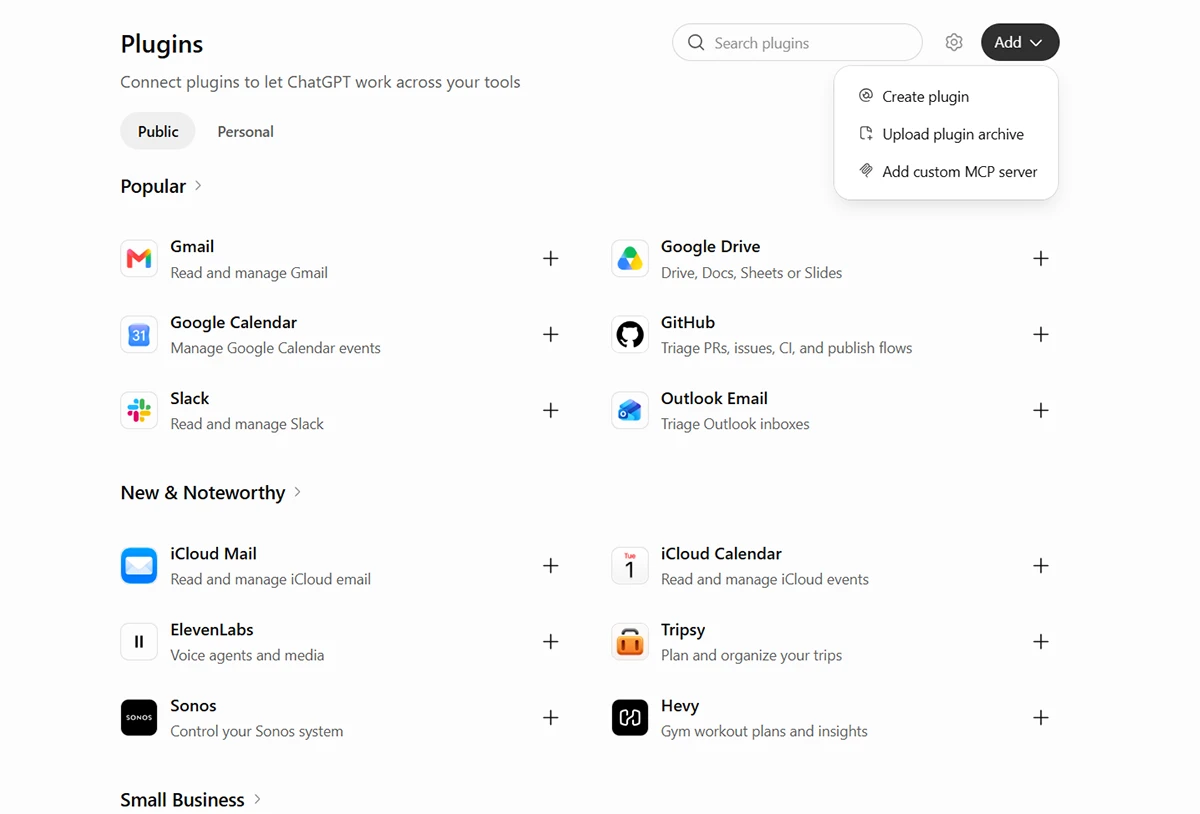
A window will appear where you can enter the NordFX connection details.
Step 2. Add the NordFX Server
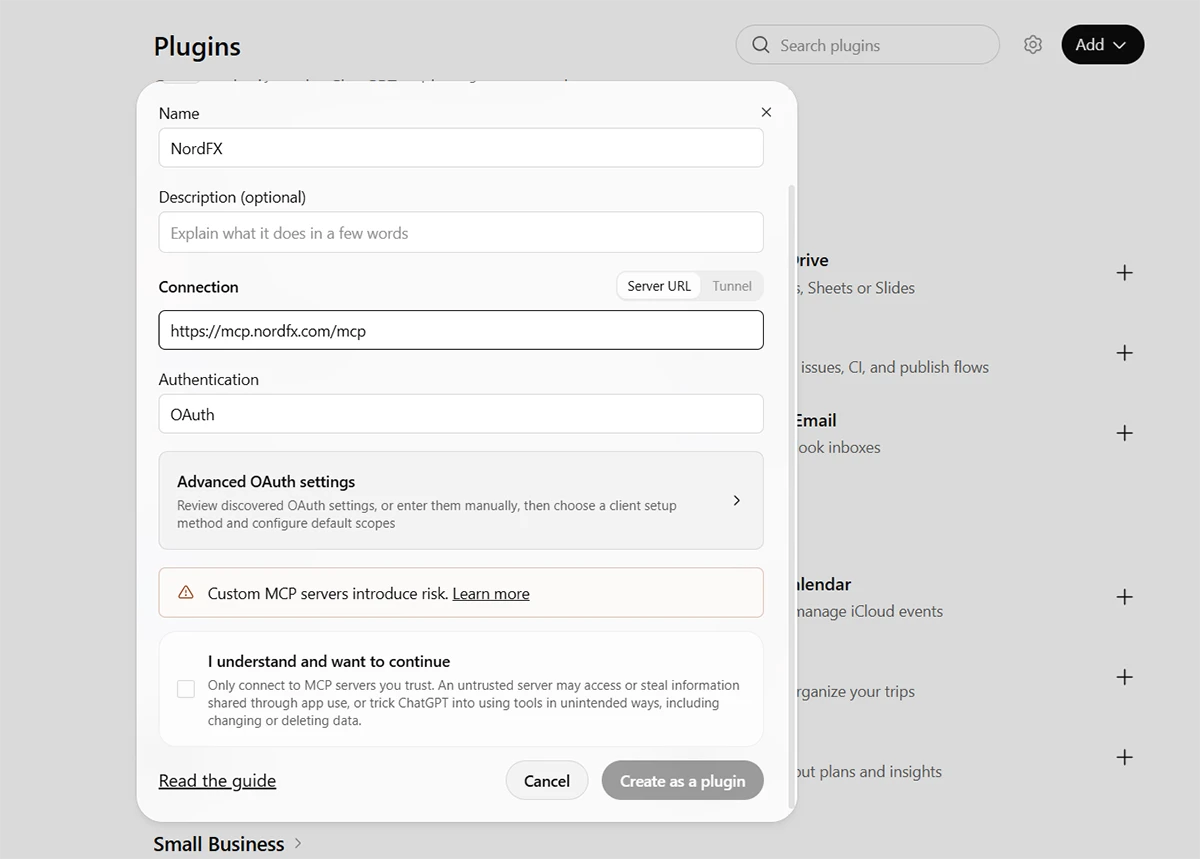
Complete the form using the following information:
- Name: NordFX
- Description (optional): Leave blank or add a short description.
- Connection: Select Server URL and enter: https://mcp.nordfx.com/mcp
- Authentication: OAuth
OAuth is a secure authorisation method that lets you grant access through NordFX without sharing your Personal Area password with ChatGPT.
Review the security notice and check I understand and want to continue.
Click Create as a plugin.
Step 3. Connect to Your NordFX Personal Area
ChatGPT will display the Connect NordFX window.
Click Connect NordFX to proceed. Your browser will redirect you to the NordFX website.
Sign in to your NordFX Personal Area using your registered email address and password.
Step 4. Choose Your Permissions
After signing in, you will see the Allow this app to access your account? page.
Here, you decide what information ChatGPT can access and which actions it may perform on your behalf.
You can grant permission to view your trading accounts and balances, retrieve market prices, access trading history, open or manage MT5 accounts, use supported funding functions and perform trading operations.
For your first connection, you can start with read-only access. For example, select:
- See your trading accounts, wallets and balances
- See market prices, your positions, orders and deals
- See your deposits, withdrawals, transfers, payment methods and limits
These permissions let you explore account information and analyse available trading history without enabling trading or money transfers.
You can also choose additional permissions according to the functions you intend to use. Trading access is optional and is not required to establish the connection.
Before proceeding, read the AI Trading Terms and check I have read and accept the AI trading terms. This acceptance is required regardless of the permissions you select.
Then click ALLOW.
Your NordFX authorisation is complete.
Step 5. Start Using NordFX in ChatGPT
Return to ChatGPT and open a new conversation.
Type @ in the message field and select the NordFX plugin.
You can now ask ChatGPT to retrieve information or perform supported actions using your connected NordFX Personal Area.
The available functions depend on the permissions you granted and the capabilities of your ChatGPT account.
Check That Your Connection Works
Start with a simple request:
"Show my NordFX trading accounts."
ChatGPT should retrieve your available MT5 accounts and display information such as account type, balance and equity.
If you have several MT5 accounts, you can specify which one to examine in subsequent requests.
One NordFX connection provides access to all your active MT5 accounts, including real and demo accounts. You don't need to connect each account separately. Newly opened MT5 accounts also become available through the existing connection.
If you haven't opened a trading account yet, you can ask ChatGPT about the available MT5 account types or request assistance with opening one, provided your connection supports the required actions.
Three More Prompts to Try
Once your connection is working, try these practical examples.
1. Understand Your Account
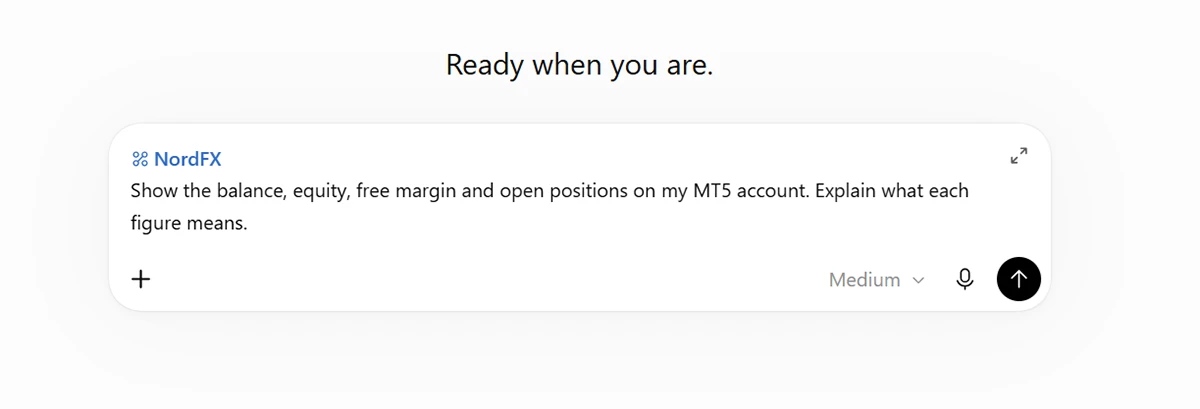
"Show the balance, equity, free margin and open positions on my MT5 account. Explain what each figure means."
ChatGPT can retrieve your current account figures and explain them in plain language.
This is useful for understanding how your account balance differs from equity, how much margin your positions are using and what funds remain available for trading.
You can follow up with questions about individual positions, floating profit or loss, and margin levels.
2. Check Live Market Prices
"What is the current gold price on my NordFX account? Show the Bid, Ask."
ChatGPT can request current market quotations from NordFX for instruments available on your trading account.
You can ask for Bid and Ask prices, spreads and available historical price data.
For example, follow up with:
"Show me gold's price movement over the last four hours and identify the highest and lowest prices."
ChatGPT can use the available market data to explain price movements or help you examine a particular period.
Market quotations may change rapidly. Check the quote timestamp and current trading conditions before making a trading decision.
3. Analyse Your Trading Performance
"Analyse my trading results for the last 30 days. Show my net profit or loss, win rate and profit factor,"
ChatGPT can access NordFX trading-performance statistics for your real MT5 account and help you understand the results.
You can examine profitability, trading costs, winning and losing trades, and performance across different instruments or trading periods.
Troubleshooting Common Connection Problems
I Can't Find Add Custom MCP Server
Check whether your ChatGPT subscription supports custom MCP connections.
For Business and Enterprise/Edu workspaces, access may depend on permissions granted by the workspace administrator. If the option is unavailable, consult your workspace administrator or check.
ChatGPT Says It Doesn't Have Permission to Perform an Action
You may not have selected the necessary permission during the initial authorisation.
Review your existing permissions in the NordFX Personal Area under Security → AI Connections.
To grant additional permissions, you currently need to disconnect and reconnect the application, then select the required permissions during the new authorisation.
ChatGPT Refuses to Perform a Trade or Another Action
First, check whether the relevant NordFX permission is enabled.
If the permission is active, the refusal may come from ChatGPT's own rules or limitations.
NordFX supports trading operations through its MCP integration, but ChatGPT may decline certain actions even when the necessary NordFX permissions have been granted.
The available actions and any additional confirmation requests are determined by the AI application.
How to Manage or Disconnect Your Connection
You can review and manage ChatGPT's access at any time from your NordFX Personal Area.
Sign in and navigate to:
Security → AI Connections
Or open the AI Connections page directly.
Here, you can see which AI applications are connected to your NordFX Personal Area, review their permissions and disable AI trading without removing other access.
To revoke access completely, click Disconnect next to ChatGPT.
You can also manage the NordFX plugin from ChatGPT's plugin settings. The connected account menu provides Reconnect and Disconnect options.
Disconnecting ChatGPT does not close open positions, cancel pending orders or remove existing Stop Loss and Take Profit levels. These remain active according to your MT5 trading conditions.
You can reconnect later if you wish to use NordFX AI Trading again.
Explore More with NordFX AI Trading
Once you've completed the setup, you can use ChatGPT to explore your trading accounts, examine market data, review trading performance and access supported Personal Area functions through natural-language requests.
For more information about the integration and its available features, visit the NordFX AI Trading page.
Kembali Kembali
